The Secrets API key can be used to authenticate and authorize API requests for managing secrets in Splashtop Secure Workspace. Follow the steps below to create a Secrets API key:
Step 1: Accessing the API Keys Section
- Log in to your Splashtop Secure Workspace account using your credentials.
- Click on the user avatar located in the upper right corner of the UI.
- From the dropdown menu, select API Keys.
Step 2: Adding a New Secrets API Key
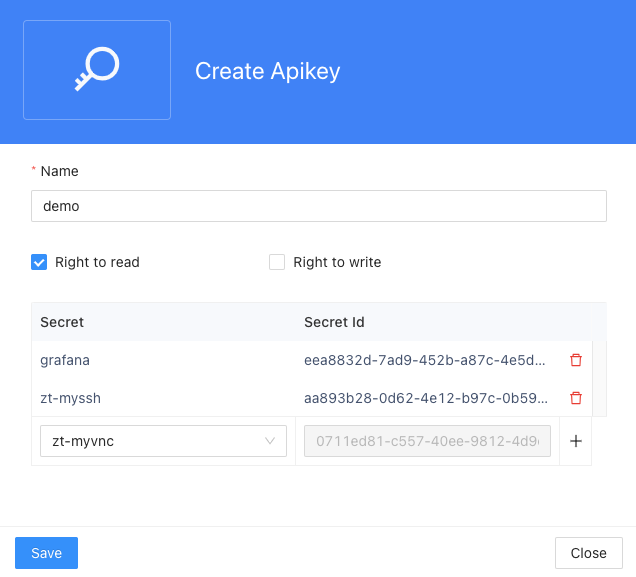
- In the API Keys section, click on the Add New button, choose + Secrets Key.
- Enter a Name to identify the Secrets API key.
- Define the permissions for this key by selecting the appropriate checkboxes:
- Right to read: Grants the API key permission to read secrets.
- Right to write: Grants the API key permission to write secrets.
- Add secrets for this key by clicking on the + button. This will allow the API key to gain permission for the specified secrets. You can select the secrets from the available list and add them to the Secrets API key.
Step 3: Saving the Secrets API Key
-
Review the Secrets API key details to ensure accuracy.
-
Click on the Save button to create the Secrets API key.
-
After clicking the Save button, the following details will be displayed:
- API Key ID: The unique identifier for the Secrets API key.
- API Key Secret Key: The secret identifier associated with the Secrets API key.
- Name: The name of the Secrets API key.
- Right to read: Specifies if the API key has the right to read secrets.
- Right to write: Specifies if the API key has the right to write secrets.
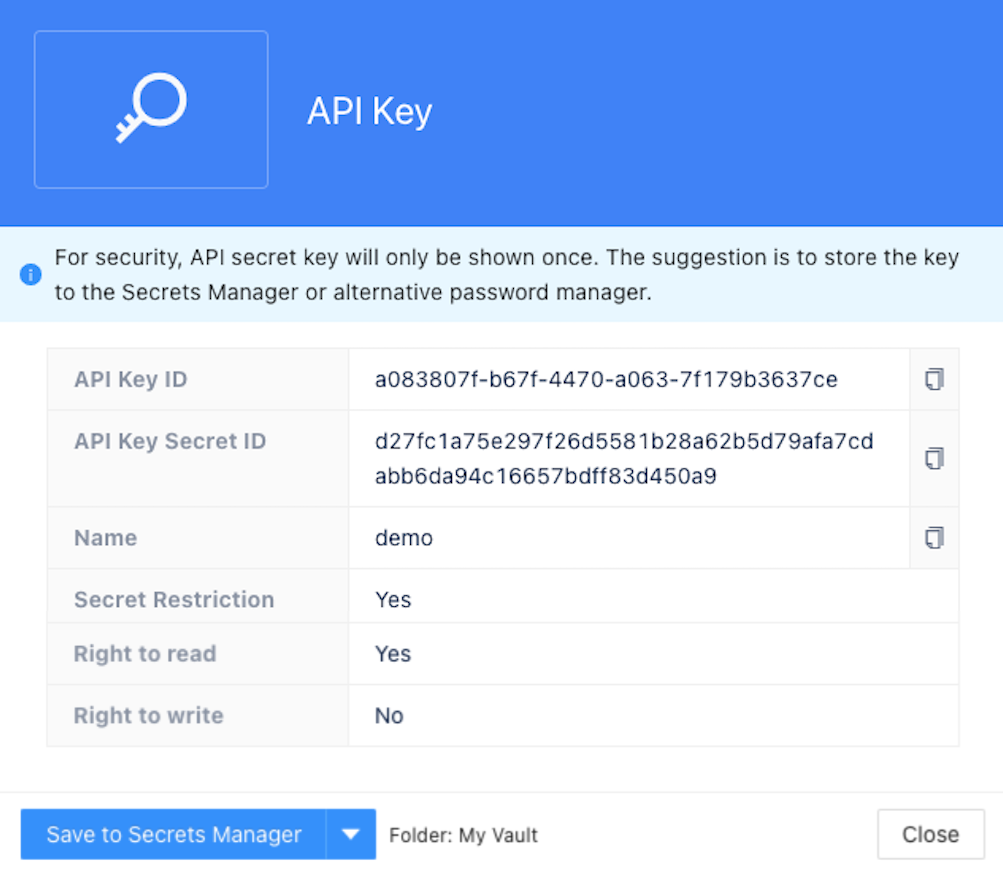
Additionally, there is an option to "Save to Secrets Manager" which allows you to save the Secrets API key into the Secrets Manager. You can click the downward arrow button to select the desired target path within the Secrets Manager to save the API key. Once you've chosen the target path, you can click the "Save to Secrets Manager" button to store the Secrets API key in the specified location within the Secrets Manager.