Goal and Objective
Secure Remote Assist enables users to request help from a trusted support engineer by allowing secure, temporary access to their desktop.
Objective: Simplify troubleshooting and problem resolution without requiring the user to manually describe every issue.
Security: Sessions are always encrypted, logged, and routed through the SSW secure network.
User Control: Access is granted only after the end user explicitly approves each session.
Starting a Secure Remote Assist Session (End User)
- Log in to your SSW Desktop Client.
- Navigate to the Shared → By You section.
- Click Add Network Target.
- Under Protocol, select Secure Remote Assist, leave the default settings as-is, and click Add.
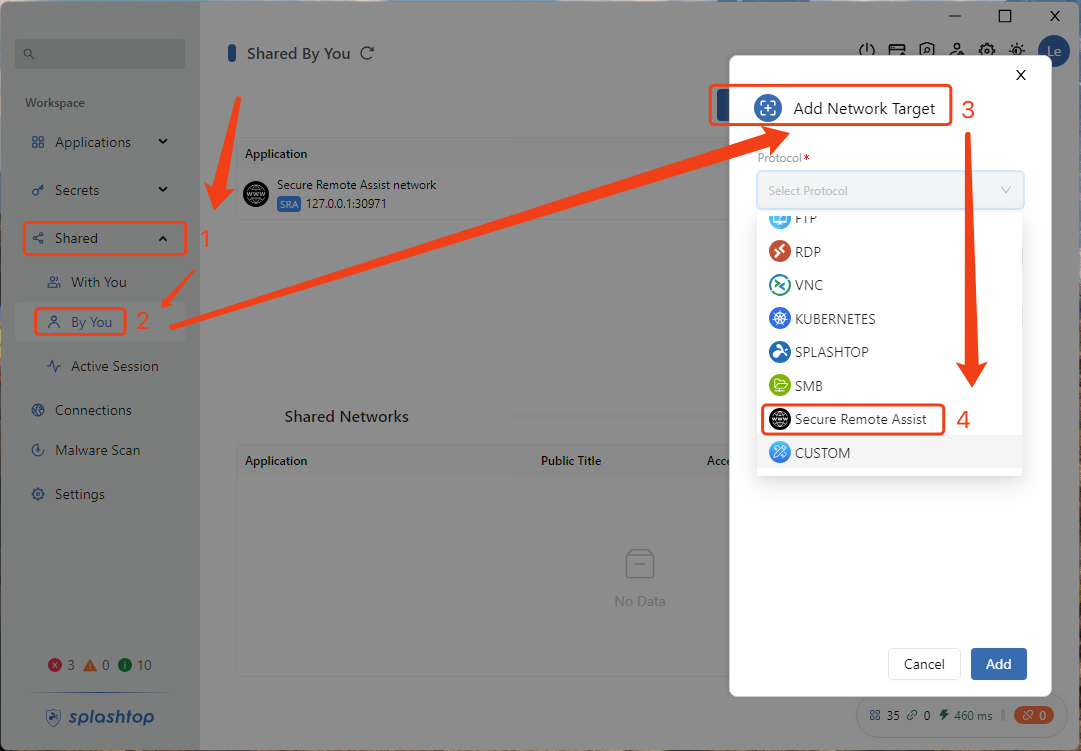
- In the Application section, find the Secure Remote Assist network you just created, then click Create Share.
- In the popup window, configure the Public Title, Usage Limit, and Expiration Date. You can also set a Passphrase if desired.
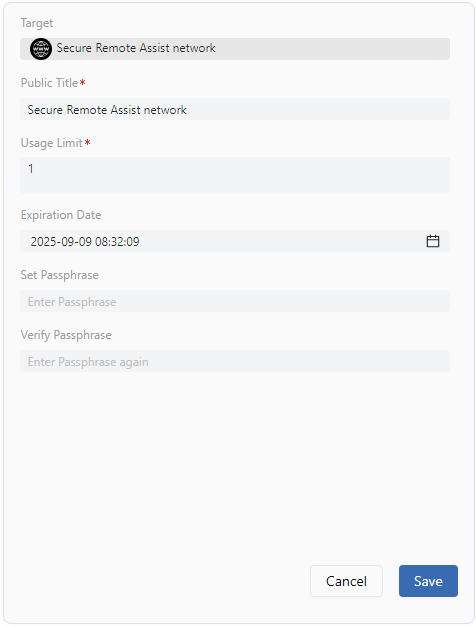
- Click Save to publish it as a Shared Network entry.
- From the Shared Networks list, click Copy URL to generate a browser access link.
- Share this link with your vendor or support assistant.
Joining a Session (Vendor/Assistor)
- Simply click on the shared URL link in a browser.
- No SSW account or client installation is required.
- Once connected, the vendor can view your screen and control your mouse and keyboard (with your permission).
During a Session
- The vendor can:
- View your desktop in real time.
- Control mouse and keyboard input.
- Work across multiple monitors if available.
- You (the end user) can end the session at any time.
Active Session Tracking
- All ongoing Secure Remote Assist sessions will appear in the Active Session tab.
- For browser-based sessions, an additional action is available:
- Open session share link in browser – Opens a view-only page that lets you monitor the vendor’s activity.
- This page is view-only, no control can be performed from here.
Security & Permissions
- Before remote control begins, explicit permission is required from the end user.
- Either side can terminate the session at any time.
- All sessions are logged in Active Session for full visibility.
Summary
With Secure Remote Assist, end users can quickly invite vendors to securely access their desktop via a simple browser link.
This ensures fast support without requiring additional client setup, while maintaining full security and control.