# Shared
The Shared module manages resources that are shared between you and others.
It consists of three parts:
- By You – Applications you share with others.
- With You – Applications shared by others that are available for you.
- Active Session – Ongoing sessions, including both desktop client and browser access.
Enabling Peer Share
Before using the Shared features, ensure that Peer Share is enabled in the device profile:
- Navigate to Devices → Configuration → Profiles.
- Select the profile that contains the target device.
- Newly added devices will belong to the _New_Endpoint profile by default.
- Click Edit on the profile.
- Go to the Networking tab.
- Enable Allow peer share.
Once enabled, devices under this profile can participate in Peer Share (both sharing out and receiving shares).
Sub-menus
The Shared module contains three sub-menus:
1. With You
The With You section lists applications that others have shared with you.
- Only connections opened via the Desktop Client will be recorded here.
- Entries are stored as network targets only; you must manually initiate the connection to start using them.
- Browser-based access will not appear in the With You list.
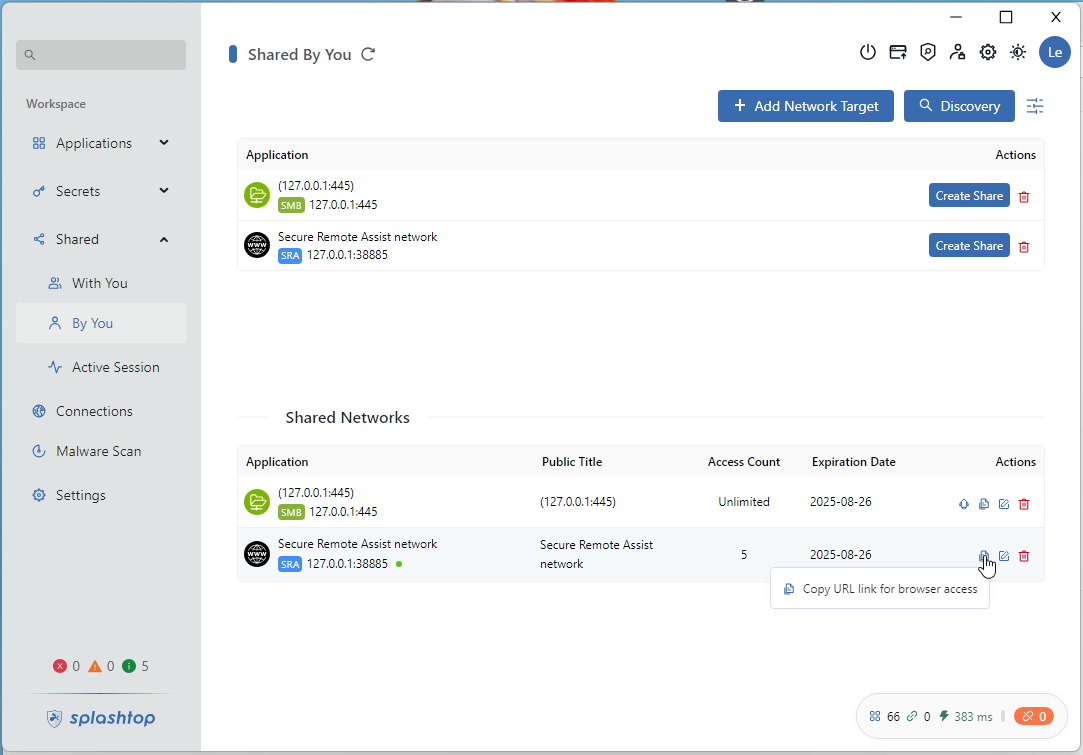
2. By You
The Application section lists all available applications on your local machine that can be shared.
Supported application types include:
- HTTP / HTTPS
- Telnet
- SSH
- FTP
- RDP
- VNC
- Kubernetes
- Splashtop
- Secure Remote Assist
To make an application accessible to others, click Create Share next to the target application.
This will publish the application as a Shared Network entry.
The Shared Networks section displays applications you have shared.
For each shared item, the following details are shown:
- Public Title – Display name of the shared application.
- Access Count – The number of times the resource has been accessed.
- Expiration Date – The date when the share link will expire.
From this section, you can:
- Copy URL – Generate a browser-accessible link.
- Anyone with the URL can access the shared application, even without an SSW account.
- When accessing via the link, the user can select Accessing shared application via workspace client... to connect through their client.
- Once connected through the desktop client, the shared network will appear in their Shared → With You page.
- Manage / Remove – Update or revoke the share at any time.
Example UI – By You
3. Active Session
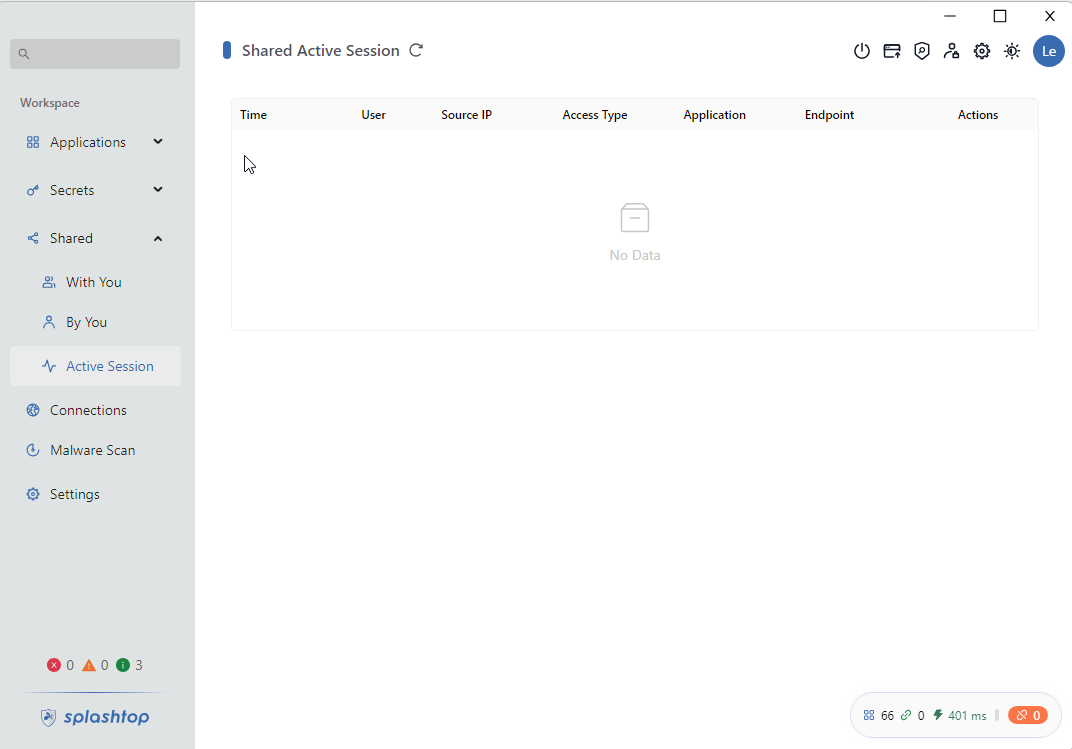
The Active Session section displays all active connections, regardless of whether they were started from the desktop client or from a web browser.
- Sessions initiated through either With You (desktop client) or browser access will appear here.
- For sessions accessed via the browser, an additional action is available:
- Open session share link in browser – Opens a view-only page showing the remote user’s current screen activity.
- This provides visibility into what the browser-based user is doing, but does not allow control.
This ensures that all active interactions are tracked in one place, giving both visibility and management options over ongoing sessions.
Example UI – Active Session
Notes
- Normal users cannot create new Applications.
- The Shared module only allows users to share their existing resources with others.
- Administrators can still manage Applications globally, but Peer Share empowers end users to collaborate by sharing their own accessible targets.