An Access Policy in Splashtop Secure Workspace allows Super Admins and Org Admins to define a set of controls that will be applied to a specific group of users. Follow the steps below to create a Unified Policy.
Step 1: Accessing Policy Management
- Log in to your Splashtop Secure Workspace super admin account or org admin account using your credentials.
- Once logged in, navigate to the Access menu and select Policies.
Step 2: Creating a New Access Policy
- On the Policy management page, locate the Add Policy button.
- Click on the button to initiate the creation process.
- Enter a descriptive Policy Name that identifies the purpose or scope of the policy.
- Add groups in the Group field that the policy will be applied to. This Group represents the groups of users that will be subject to the policy controls.
- (Optional) Specify a Tag to further categorize or organize the policy. Tags can help with policy management and searching.
- Define the Controls or security measures that will be enforced by the policy. These controls can include various types based on their intended use:
- Secret Read: Enforces read access to secrets.
- Secret Write: Enforces write access to secrets.
- Secret Permission: Enforces permission management for secrets.
- Application Access: Controls access to specific applications.
- User Authentication: Controls the authentication process for users.
- DNS Filtering: Controls and filters DNS requests to prevent access to malicious websites.
- Secure Web Gateway: Enforces company policies regarding web traffic, providing security against web threats.
- CASB (Cloud Access Security Broker): Provides visibility into cloud applications usage and enhances security controls.
- For each control, you can specify a default action to be taken when no specific If conditions is met:
- Allow: Allows the action to proceed.
- Allow_MFA: Allows the action but requires an additional MFA (Multi-Factor Authentication).
- Deny: Denies the action.
- You can also define If conditions for each control. These conditions determine whether the default action or a different action should be taken based on predefined conditions. You can choose from a list of pre-defined conditions.
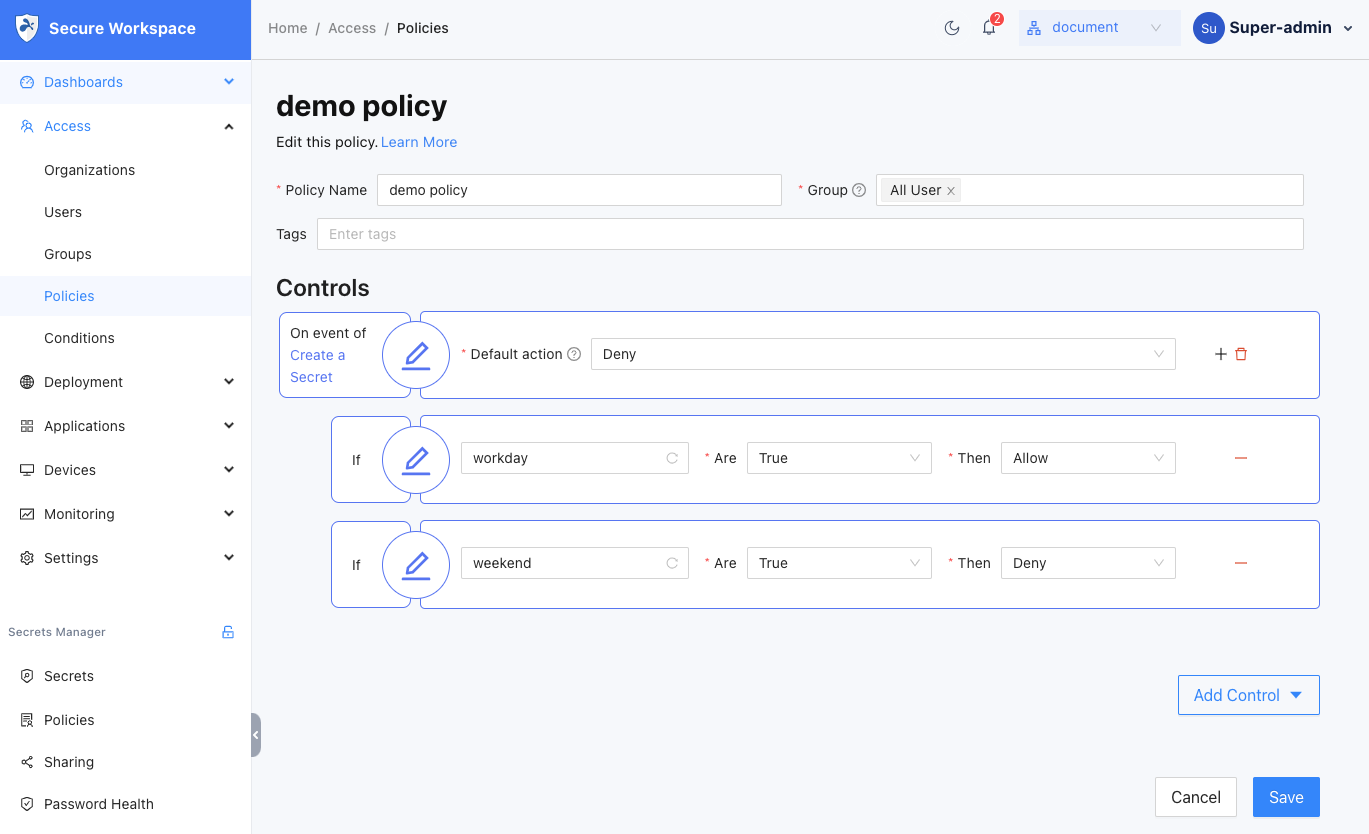
- Also you can follow this document to create a new conditions:
Create new condition - Review the entered information to ensure accuracy and completeness.
Step 3: Saving and Deactivating the Policy
- Once you have defined the policy settings and controls, click on the Save button to save the policy.
- The policy will be created and added to the list of policies.
- By default, the policy will be in a active state. Locate the newly created policy in the list and deactivate it by clicking on the corresponding Enabled button.
Step 4: Post-Creation Actions
- After activating the policy, it will be applied to the designated Group.
- Ensure that the policy settings align with the desired security requirements and objectives.
- Monitor the effects of the policy on the users within the Group and make adjustments if necessary.
- If needed, you can modify or delete the policy by accessing the Policy Management section.