The Controller API key can be used to authenticate and authorize API requests to interact with the system programmatically. Follow the steps below to create a Controller API key in Splashtop Secure Workspace:
Step 1: Accessing the API Keys Section
- Log in to your Splashtop Secure Workspace account using your credentials.
- Click on the user avatar located in the upper right corner of the UI.
- From the dropdown menu, select API Keys.
Step 2: Adding a New Controller API Key
- In the API Keys section, click on the Add New button, choose + Controller Key
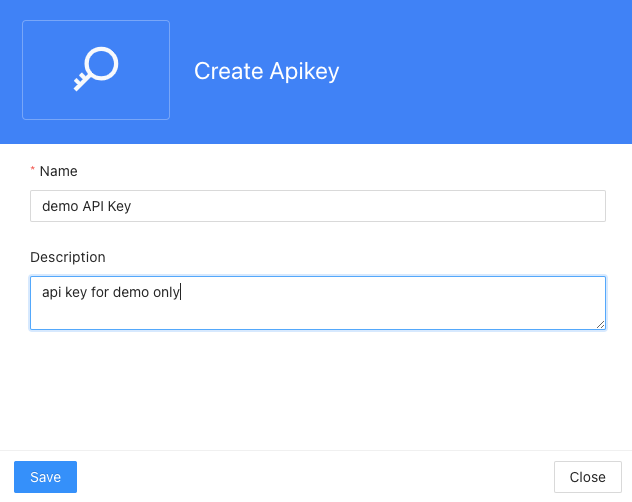
- Enter a Name to identify the Controller API key.
- Provide a Description to give more information or context about the key.
Step 3: Saving the Controller API Key
- Review the Controller API key details to ensure accuracy.
- Click on the Save button to create the Controller API key.
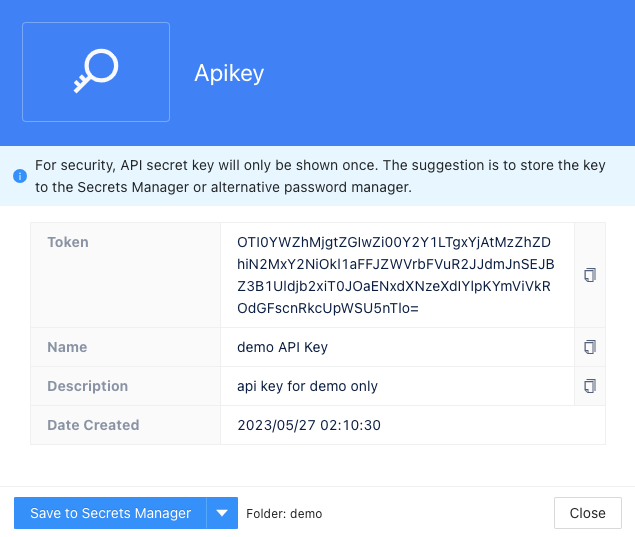
- After clicking the Save button, the following details will be displayed:
- Token: The generated Controller API key token, which serves as the authentication token for API requests.
- Name: The name of the Controller API key.
- Description: Additional information or context about the Controller API key.
- Date Created: The date when the Controller API key was created.
- Additionally, there is an option to "Save to Secrets Manager" which allows you to save the Controller API key into the Secrets Manager. You can click the downward arrow button to select the desired target path within the Secrets Manager to save the Controller API key. Once you've chosen the target path, you can click the "Save to Secrets Manager" button to store the Controller API key in the specified location within the Secrets Manager.