Adding discovered applications allows you to include them in your Splashtop Secure Workspace for easy access and management. Follow the steps below to add discovered applications to your workspace.
Prerequisites
- Ensure that you have already discovered applications using either the SSW Desktop App or headless connector.
Step 1: Accessing the Add Applications Page
- Log in to your Splashtop Secure Workspace admin account using your credentials.
- Navigate to Applications -> Applications.
Step 2: Add Discovered Applications
- On the Applications page, click on the Add Applications(s) button to access the Add Discovered Applications page.
Step 3: Configuring Discovered Applications
-
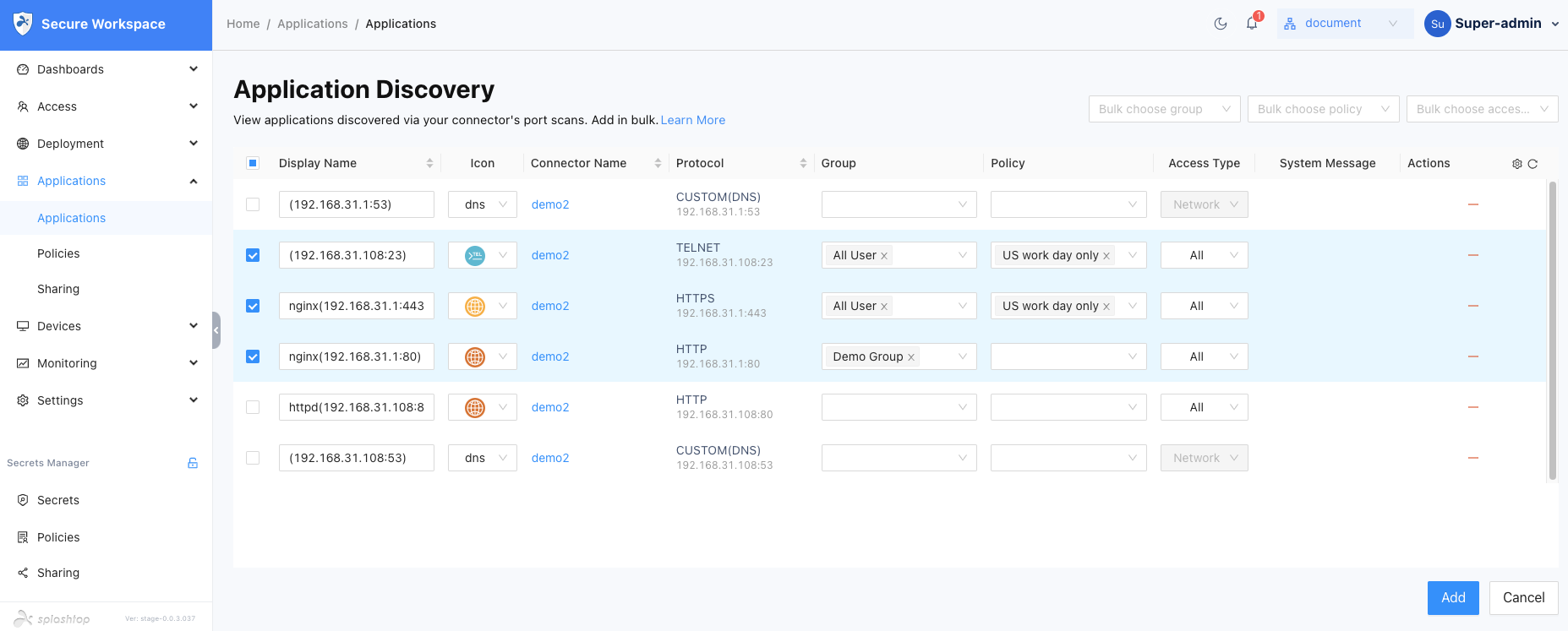
On the Add Discovered Applications page, you will see a list of discovered applications that have not been added to your SSW workspace.
-
For each discovered application you want to add, perform the following actions:
a. Assign Groups: Select the appropriate group(s) from the dropdown menu to assign the application to. This determines which users will have access to the application.
b. Manage Policy: Configure the desired policies and controls for the application. This includes defining access rules, authentication requirements, and other security measures.
c. Modify Access Type: Adjust the access type for the application, such as browser access or SSW app access.
d. Update Application Name: If needed, you can update the application name by clicking on the existing name and entering a new name.
Step 4: Adding Discovered Applications
- Once you have configured the necessary settings for each discovered application, click on the Add button to add them to your SSW workspace.
Step 5: Verifying the Added Applications
- The added applications will now be accessible from the Applications tab.
- Verify that the applications have been successfully added and are available for users within your organization.