Application policies in Splashtop Secure Workspace allow you to define specific controls and actions for applications based on user groups and conditions. Follow the steps below to add an application policy.
Step 1: Accessing Application Policies
- Log in to your Splashtop Secure Workspace super admin account or org admin account using your credentials.
- Once logged in, navigate to the Applications menu.
- Select the Policies section to access the application policies configuration page.
Step 2: Creating a New Policy
- On the application policies configuration page, click on the Add Policy button to create a new policy.
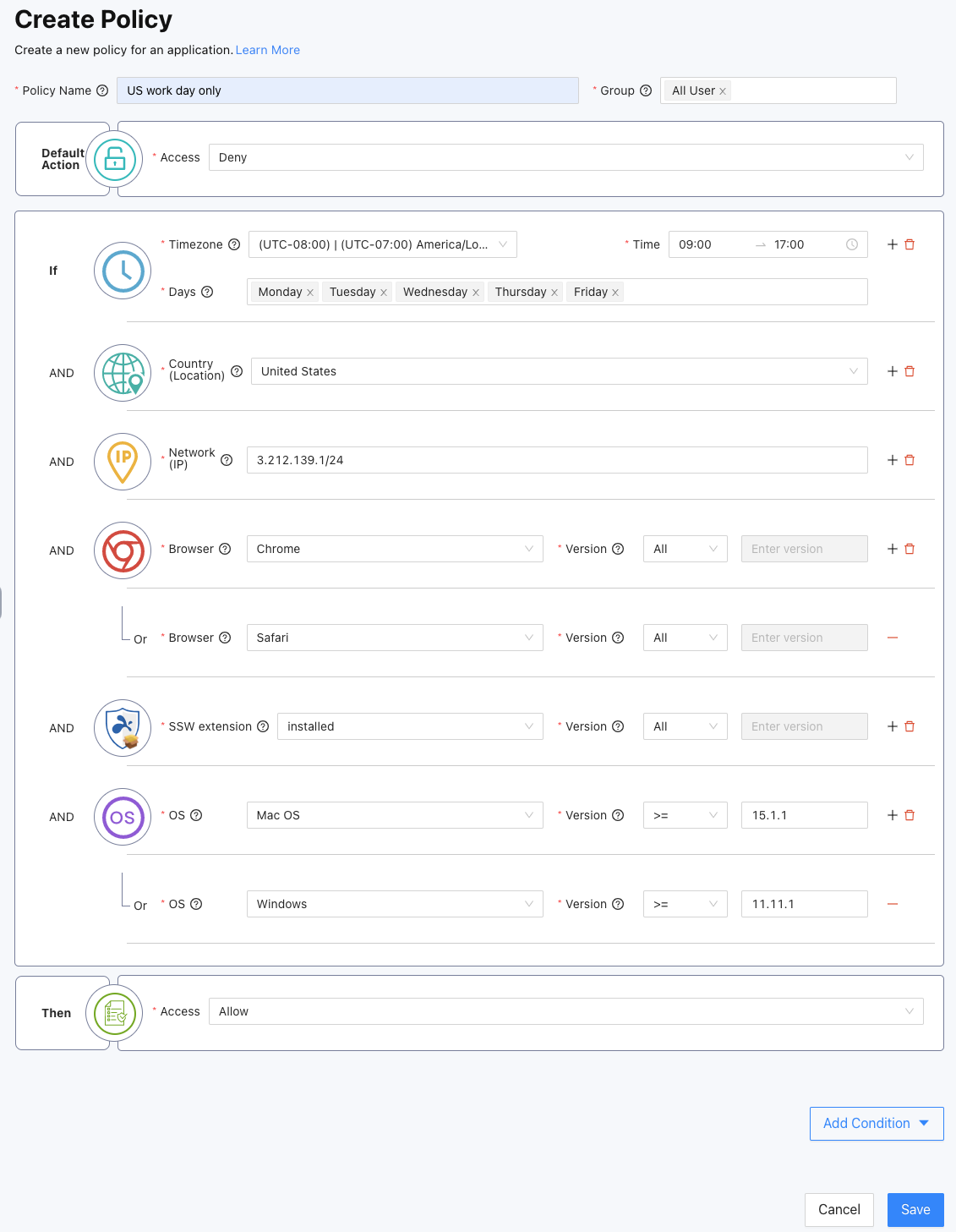
- Enter a Policy Name to identify the policy.
Step 3: Configuring Group Access
- In the Group field, add the user groups to which the policy will be applied. These groups represent the users who will be subject to the application policy controls.
Step 4: Defining Default Action
- The application policy has a Default Action that will be applied when none of the specified conditions are met. Choose whether to allow access, deny access, or require MFA (multi-factor authentication) for the default action.
Step 5: Adding Conditions
- To further customize the policy, you can add conditions based on different types:
- Date and Time: Set specific time-based conditions.
- Location (Country): Apply restrictions based on the user's country.
- Network (IP): Control access based on the user's IP address.
- Browser: Specify the browser application and version.
- Extension: Check if the SSW extension is installed or logged in, and specify the version.
- OS: Set conditions based on the user's operating system and its version.
- Based on the combined result of all conditions, choose whether to allow access, deny access, or require MFA (multi-factor authentication).
Step 6: Review and Save
- Review the configured policy to ensure accuracy.
- Click on the Save button to create the application policy.